fed3bandit web-app#
The fed3bandit web-app’s goal is to provide a simple an intuitive way to visualize and analyze FED3Bandit data.
Running the app#
After installing the fed3bandit package (see Installation) we can run the web-based app by following these steps:
Open Anaconda Prompt (Windows) or terminal (MacOS/Linux).
Activate environment where fed3bandit is installed. If you followed Installation instructions, you can type:
conda activate fed3banditType
python -m fed3bandit.fed3bandit.launch_appCopy the address (usually:
http://127.0.0.1:8050/) and paste it on a new tab in your browser of choice.
Success!
Overview of the app#
This is what the app should look on your browser:
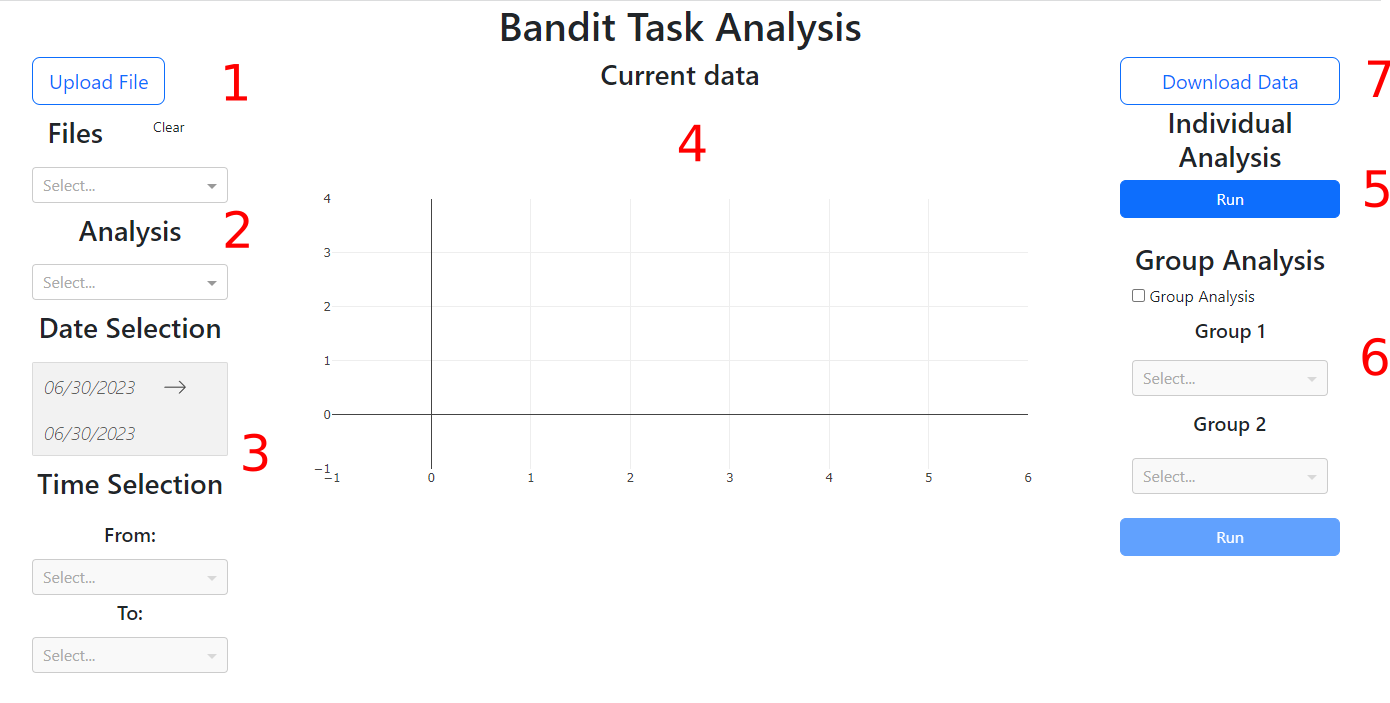
In order to provide an overview of how to use the app, we have divided it into 7 elements:
Upload button: Here you can drag or click to load your FED3Bandit .csv files. Please note that while this button only takes .csv files, if other .csv files that are not the output of the FED3Bandit task are uploaded, the app may break. The Files option shows all the files that have been uploaded. Click to select a file.
- Analysis options: Here you will see all the analysis options. After you select a file. Currently these options are:
Overview
Win-stay/Lose-shift
Reversal peh
Logistic wins
Logistic losses
Date and time selection: Here you can select the date and time in which the analysis will be run
Main panel: This is where the result of the analysis will be displayed
Single run button: This is where you can run the analysis for a single file. The analysis will be run on the file selected in the Files option.
Group analysis: Check the “Group analysis” box to enable. At least one file is required on each group to run an analysis. The date and time selection will update to reflect the dates/times which ALL files from both groups share. Click the “Run” button below the Group 2 option to run group analysis
Download button: Download the analysis data that is being displayed in the main panel as a .csv. The Figure itself can be downloaded as a PNG using the options from the plotting library (top right corner of the main panel).
Sample data for testing#
If you wish to test the web-app but haven’t collected any data yet, you can use the sample data that is included with the fed3bandit package.
In a new python file type and execute the following:
import fed3bandit as f3b
import pandas as pd

sample_data = f3b.load_sampledata()
sample_data.to_csv("YOUR/PATH/FILENAME.csv")
The sample data will now be saved as a .csv file in the path that was provided and can be used to test the web-app.